Features / tmux and herdr
One pane at a time. Swipe to the next.
A tmux window built for a 27-inch screen doesn’t fit on a phone. Moshpit doesn’t squeeze tmux’s text screen down; it draws each pane as a view of its own.
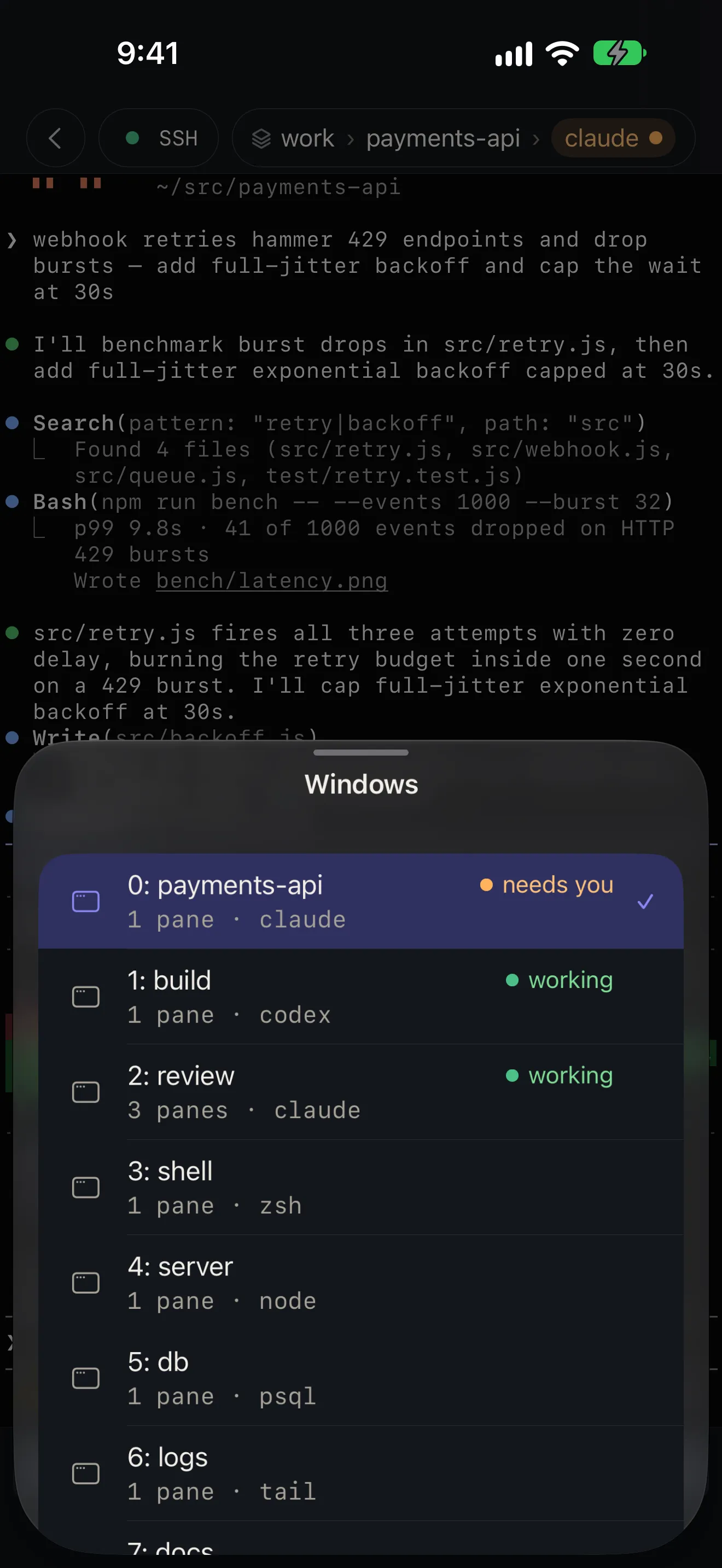
Why it’s there
One pane at a time, full width
On a phone you read one pane properly instead of four badly. Swipe sideways in the terminal to go to the next one.
A list a tap away
Tap the session, the window or the pane in the breadcrumb for a list of all of them: what runs in each, and which agent is still working or waiting for you.
Native lists
Each list ends in New; a long press renames or closes. With a keyboard, ⌘K shows every pane of the window as a live picture.
How it works
- Moshpit attaches to tmux in control mode (tmux -CC), the way iTerm2 does, and to herdr through its own protocol.
- It attaches to your most recent session and never creates one on its own; if there is none, it offers New Session.
- With tmux 3.8 or later, switching windows on the phone leaves the client on your desk where it was.
- On iPad with a keyboard: ⌘K shows all panes, ⌘1–⌘9 picks a window, ⌘W goes back to Home.
Good to know
- Several clients on one tmux window share one size. Moshpit takes the window while the phone is on it and hands it back when you leave.
- If the tmux server is killed, the terminal offers New Session instead of a dead screen.
More features
Notifications
The agent asks. Your phone knows.
Home and Live Activity
Who is waiting, who is working, and for how long.
Files
Open the file your agent just made.
Agent tasks
A new task, on its own branch, from your phone.
Mosh
Walk out of the Wi-Fi. The session stays.
Terminal
A terminal first.
Voice input
Talk to your agent. The audio stays on the phone.
Jump host
Jump hosts, the way ssh ‑J does it.
Privacy and source
Paid once. Nothing collected. Source open.
Companion