1 Reach the host
Add the SSH details, check the host fingerprint once, pick
herdr as the multiplexer for that connection.
This is the walkthrough the app exists for. Four steps: get a host reachable, put herdr on it, start Claude Code, and answer its permission prompts from the lock screen. Everything here is a real string from the shipping app or a real command Moshpit runs.
claude in a herdr pane, or let Moshpit cut a fresh
git worktree and start Claude Code inside it.What you need before you start. A server you can already reach over SSH, an iPhone running iOS 18 or later, and Claude Code installed on the server. Moshpit does not install Claude Code and does not talk to Anthropic — it drives a shell, and Claude Code is just a program running in it.
herdr is optional. It is what makes agent status a fact instead of a guess, so this guide uses it. The tmux route works too and is covered in Using tmux and Answering agents.
Step 1
Four fields and one fingerprint check. If you can already
ssh into the box from a laptop, this part takes a minute.
On Home, tap + in the header. The form is grouped:
Name, Host, Port
(defaults to 22), Username. Save lights up once Name and Host
are filled.Password or SSH Key. A key can
be one you made in Settings → SSH Keys, or a PEM pasted straight into the
form.Multiplexer, set to herdr. Leave the custom
path field empty unless the binary is somewhere unusual; a custom path is trusted
verbatim and skips the capability probe.The multiplexer is chosen per connection, not globally. Your hosts do not all have the same tools installed, and a global default would only produce "why doesn't this one connect".
The first time you connect, the handshake pauses and Moshpit shows the host key it was offered:
New Host

First connection to your-host:22.

Key fingerprint:
SHA256:…

Verify it matches the server (e.g. `ssh-keygen -lf /etc/ssh/ssh_host_ed25519_key.pub`).

          [ Cancel ]   [ Trust ]
Moshpit cannot verify the fingerprint for you — it shows you the command to compare against. If a stored key ever changes, the dialog turns into ⚠️ Host Key Changed with both fingerprints printed, Disconnect as the default button and Trust New Key marked destructive.
Limitation worth knowing now. There is no screen that lists or forgets trusted host keys. Deleting a connection does not forget its fingerprint, and trust is stored per device and excluded from backups — a new phone re-prompts for every host. After a legitimate re-key, accepting the change in the ⚠️ dialog is the only in-app path.
Also: passwords and PEMs typed into the connection form are saved without a Face ID gate. Only keys created in Add Key with Require Face ID prompt on every read. Passphrase-encrypted private keys are not supported at all.
Step 2
herdr is a single Rust binary written for CLI coding agents. It reports
agent_status as a protocol field on every pane, which is why Moshpit needs
nothing installed on your host to know that Claude Code is waiting on you.
# macOS / Linuxbrew
brew install herdr

# everything else
curl -fsSL https://herdr.dev/install.sh | sh
There is no apt-get line to give you: herdr is in no Linux
distribution repository, and its own packaging only covers Windows. Moshpit refuses
to synthesize sudo apt-get install -y herdr for that reason — a command
that ends in "unable to locate package" reads as an app bug.
The installer drops the binary in ~/.local/bin and
deliberately touches no rc file. Moshpit adds that directory to the PATH it uses when
probing and when launching herdr, so you do not need to change anything on the host.
Connect with herdr selected on a host that does not have it and you get a dismissible banner, not a failure:
Which herdr version this was built against. The integration was designed
against herdr main / v0.8.0, protocol 19, and verified on real hardware against
0.7.3, protocol 16 — which is what brew install herdr installed at
the time. The snapshot decoder is written so a missing field degrades that one detail
instead of failing the whole read.
The visible cost on 0.7.3: it reports no pane command, so the third segment of the
terminal breadcrumb falls back to pane N instead of naming what is
running. The crumb is kept anyway, because it is the only way into the Select Pane
sheet.
Use SSH, not Mosh, for this guide. Mosh transmits rendered screen diffs,
which destroy line framing, so it cannot carry herdr's frame protocol (the same reason
it cannot carry tmux -CC). Over Mosh, herdr runs its own full-screen TUI
and Moshpit is only the renderer — on a phone that costs roughly a third of the screen
width to herdr's sidebar. The control-plane sheets still work through a separate SSH
sidecar.
Step 3
Two ways in. Run it in a pane you already have, or let Moshpit cut an isolated git worktree and start it there. The second is the one worth reaching for from a phone.
nothing new to learn
a worktree, a workspace, an agent
Either way, herdr infers the agent from screen content. If you want it
reported rather than inferred, run herdr integration install claude on the
host once — Claude Code then announces its own state. It is more authoritative and it is
not required; everything in this guide works without it.
Group TASK, footer: "Creates a git worktree on the host, then starts the agent inside it. Your working tree is untouched."
git rev-parse --show-toplevel, and a
scan of $HOME by modification time. While it looks, the menu reads
"Looking for repositories…"; if nothing turns up,
"None found — no panes in repos, and nothing under ~". The last item is
always Other…, which reveals a Repository path field.- or /, a trailing /,
.., a trailing .lock and the characters
~ ^ : ? * [ \ are all refused with a plain message, for example
"No spaces in a branch name". Invalid input never reaches the host.herdr server agent-manifests --json.
The default prefers claude, then codex, then whatever
is first. (Alphabetical order made the default agy on a real host,
so it is no longer alphabetical.)Group FIRST MESSAGE, footer: "Optional. Sent to the agent once it's running — leave blank to type it yourself." The Start button becomes Starting… while it runs, because a large checkout takes tens of seconds and a button that never changes reads as broken.
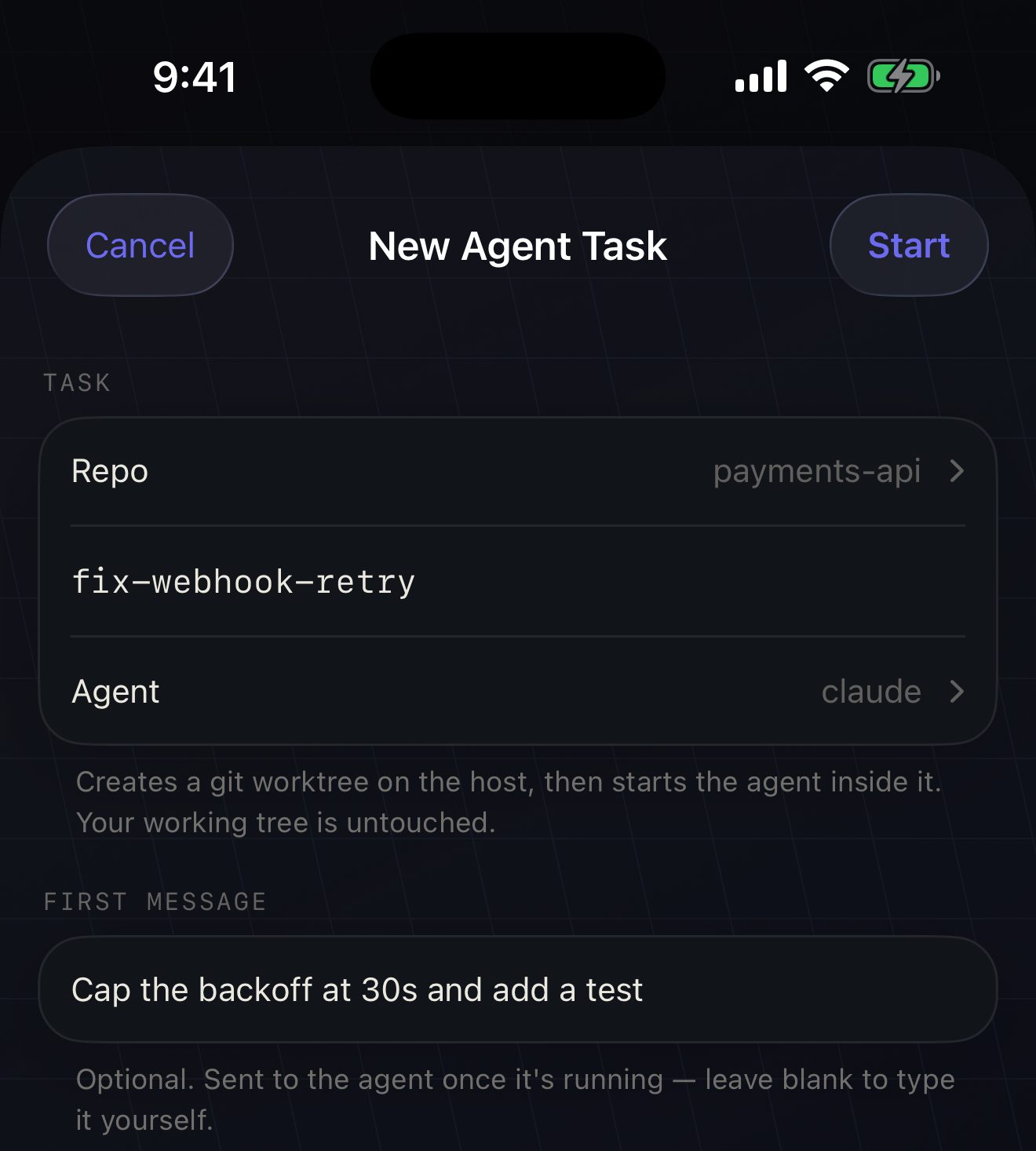
Three commands over SSH, in order. Nothing is hidden, and every label you typed is single-quoted before it goes anywhere near a shell.
herdr worktree create --cwd '~/code/payments-api' --branch 'fix-webhook-retry' \
     --label 'fix-webhook-retry' --focus --json
→ {"type":"worktree_created",
    "workspace":{"workspace_id":"w4"},
    "root_pane":{"pane_id":"w4:p1",
                 "cwd":"~/.herdr/worktrees/payments-api/fix-webhook-retry"}}

herdr pane run 'w4:p1' 'claude'          <- types the command and presses return

herdr agent send 'w4:p1' '<first message>'   <- 2s later, only if you typed one
A new git worktree, a new workspace, a pane already sitting in the
checkout, focused. Step two is deliberately pane run rather than
agent start: agent start --workspace does not inherit the
worktree's directory, so its pane lands in the wrong place. pane run types
exactly what you would have typed, and you can see it happen.
On the hardware verification run, the workspace appeared with cwd
~/.herdr/worktrees/…/fix-scroll-jump, git worktree list
confirmed the branch was really created, and Claude Code started and stopped at its
trust-directory prompt. herdr marked the pane agent: claude / status:
blocked, and the Agents section on Home immediately read
AGENTS 1 · NEEDS YOU. That first prompt is the one you answer in step 4.
Long-press the workspace row on Home → Remove Worktree. The item
only appears on workspaces that really are a linked worktree. The first command never
carries --force:
payments-api itself is untouched."--force.Limits on this step, stated plainly.
Worktrees land in ~/.herdr/worktrees/<repo>/<branch>, not
beside the repo, and there is no path option in this version — it is not a thing worth
typing on a phone. Large repositories take tens of seconds to check out. Behaviour of
git worktree add against a dirty repository is expected to be fine, but
has not been verified.
Agent flags are not chosen for you. Whatever the manifest's default
claude command is, that is what runs. Options like
--dangerously-skip-permissions have to be typed by you, in the pane.
herdr only sees agents in its own panes. A claude you started
in Terminal.app on the same machine does not appear — herdr is a runtime, not a
process scanner. This was hit for real: five idle herdr panes, one busy claude in a
separate terminal, and the Agents section correctly said
"Nothing running — start a task to isolate one" while the user was certain
something was running.
Not verified on device: the long-press context menu itself. Automation cannot drive a SwiftUI long-press, so the menu → dialog → dialog sequence is guaranteed by compilation and unit tests, without a device recording.
Step 4
Claude Code stops and asks whether it may run a command. Amber is the only colour on this site that means "an agent needs a human", and this is where it shows up — as a notification that reaches a locked phone.

The question, on a locked phone Title is the agent; the body is what it is asking and where — Claude needs your permission to use Bash — m1-pro · pit. When several agents wait on one host, they share a single card: claude +2.
The tap Lands in the exact pane that asked. You read the prompt in a real terminal, then answer it with the same keys you would press at your desk.
No Allow button, on purpose The lock-screen buttons this app used to have sent a blind keystroke into the pane. Approving something you have not read, in an app whose whole value is that you can read it, was the wrong trade — so they are gone.
Your host does the part a suspended iPhone cannot. The same hooks that
stamp the pane hand attention and done — never
working — to a small sender, ~/.moshpit/moshpit-push.sh,
which seals the alert with a key only your phone holds and passes the
ciphertext to Moshpit's push relay, then Apple. Neither can read a byte of it: agent
name, command, the question itself decrypt inside a notification extension on your
phone, lock screen included. Pairing happens by itself the first time you enable
notifications on a host; the one consent that remains is the first hook install.
Scope, stated plainly. The sender rides the agent hooks, and the hooks
stamp tmux panes — so the app-closed push path needs your agent running
under tmux with the hooks installed. On a pure herdr pane, herdr's own
agent_status drives the island and notifications while Moshpit is
alive, and pushes stop when the app does. If being woken with the app closed
is the point, run Claude Code in a tmux pane for now.
Notifying on everything is the same as notifying on nothing, so an alert has to earn the interruption:
| Rule | What it means |
|---|---|
| 30 seconds standing | A question answered at your desk inside the grace window is never announced to any phone. |
| One card per host | All waiting agents share one summary — "claude +2". Only the nobody was waiting → someone is edge rings and may pierce Focus; everything after updates the card silently. |
| Done chimes at 3 minutes | A finished turn makes a sound only if it ran three minutes or more. Short turns file into the list without lighting the screen. |
| Parked agents stay silent | An idle reminder on an agent you deliberately left at its prompt lights nothing up — and a day-old stale "needs you" heals itself to done. |
Honesty in the small print too: viewing a prompt in the app acknowledges it, and a reconnect or relaunch never re-rings a question you have already been told about.
Settings → NOTIFICATIONS. All four default to on.
Bash: npm install line.Turn both Notifications and Live Activity off and nothing is watched at all. The Set up this host row below the switches shows what the connected host has: which agents have hooks, whether the push sender is installed, and the pairing this phone holds — setup itself is automatic on connect.

Unlocked · needs you The pill keeps an amber exclamation mark for one blocked agent, or the count for several. Only one agent fits in the pill — the Switch button in the expanded view cycles to the others.

Unlocked · working Teal with a live timer while Claude Code is running. A thinking agent and a stuck one do not look alike.
The honest part
This is the section to read before you rely on any of the above. The sealed push is what covers the gap now — and what it does not cover is written here too.
When iOS suspends the app, the 2-second sweep and the SSH polls stop
with it. What crosses the gap is the push path from step 4: the hooks on your host
notice attention and done and send the sealed alert
themselves — no live session required, phone locked, app closed.
What does not cross the gap: the Live Activity. It renders the last state the app saw, and with the app suspended nothing feeds it. Measured on device: with Moshpit backgrounded, flipping a pane from blocked to working left the Dynamic Island unchanged until one poll after returning to the foreground.
Moshpit                      2 working · 1 needs you
●  claude                   NEEDS YOU · 2m
   mac-studio · ~ · Tab 1
   Bash: npm install

… app suspended for two minutes …

Moshpit            paused — open Moshpit to refresh
The Live Activity carries a 120-second staleness horizon — two missed sweeps — and renders an honest "paused" hint rather than a frozen "working". The Home Screen widget uses 180 seconds and dims every state dot to grey when it goes stale. Where the step-4 sender is in place, the pushed notifications keep arriving regardless.
now,
2m, 1h 12m — and never in seconds. The data behind them is
up to 8 seconds coarse, and printing seconds would claim a precision the number does
not have.herdr's direct attach is exclusive per pane. Moshpit must attach
with --takeover, because a reconnect always collides with its own stale
channel. Two phones on the same pane therefore each re-claim it roughly every two
seconds. That is inherent to exclusive direct attach and cannot be fixed from the
client.
What Moshpit does about it: three unrequested closes inside 30 seconds trigger a 30-second pause and a visible notice — "Another client is using this pane — retrying shortly" — which clears itself as soon as frames paint again. A laptop running herdr's own TUI does not occupy an attach slot, so laptop-plus-phone should be safe, but that combination has not been tested.
Loose ends
No. On tmux, install the agent hooks from Settings → NOTIFICATIONS → Install
agent hooks — one command that registers Claude Code's
UserPromptSubmit, PreToolUse, Notification
and Stop hooks so they stamp state onto the tmux pane. It backs up
~/.claude/settings.json first, always exits 0 so it cannot block the
agent, and de-dupes itself if you run it twice. Without hooks, Moshpit falls back
to reading pane output and the terminal bell, which is a guess and is described as
one. The Agents section on Home is herdr-only.
Yes — that is what the push path is for. The hooks on your host seal the alert with a key only your phone holds and send it through Moshpit's relay; a notification extension decrypts it on the lock screen, app closed, phone locked. The scope note in step 4 applies: the sender rides the agent hooks, which stamp tmux panes, so run the agent under tmux if this is the part you care about. The quiet rules — 30-second grace, one card per host, done only chimes past three minutes, parked agents silent — are described in Answering agents.
Mosh is the right choice for a shell you want to survive a Wi-Fi to 5G handoff,
but it cannot carry herdr's frame protocol or tmux -CC. Over Mosh,
herdr runs its own TUI inside the terminal and takes about a third of the phone's
width for its sidebar; the control-plane sheets still work through a separate SSH
sidecar. For this guide, use SSH. Details in
Mosh and roaming.
It is almost certainly not running in a herdr pane. herdr identifies agents by
watching its own panes, so a claude started in Terminal.app or a
separate SSH session is invisible to it. Start it with New Agent Task, or run
it inside a herdr pane. On herdr 0.7.3 there is a second effect: no agent name is
reported, so an idle agent never grows a row at all.
There is no Moshpit account and no analytics, and terminal traffic goes only to servers you add. The one Moshpit-operated piece is the push relay, and it carries ciphertext it cannot open — the alert is sealed on your host with a key only your phone holds. The one thing that leaves the pane is the hook's short title — what the agent is running or asking, capped at 80 characters — which travels sealed and is rendered on your own lock screen.
Connections and keys for the full form and host-key behaviour, Using herdr for the vocabulary and key bindings, and Answering agents for the notification and Live Activity path in detail. If something will not connect or behaves oddly, start at Troubleshooting.
Continue with Reach your machine from anywhere · Back to guides